Scaledmail MCP Server
Last updated May 26, 2026
Use ScaledMail directly inside Claude Desktop via the Model Context Protocol (MCP). Once set up, you can buy domains, manage mailboxes, swap domains, and more — all from within a Claude conversation.
What is MCP?
MCP (Model Context Protocol) is an open standard that lets AI models like Claude securely connect to external tools and services. The ScaledMail MCP server gives Claude direct access to your ScaledMail account.
Requirements
Before you start, make sure you have:
- Claude Desktop (Mac or Windows) — Download here
- Node.js — Download here — required to run the MCP server via
npx - scaledmail-mcp package — View on npm — installed automatically via
npx, no manual install needed - A ScaledMail account with admin access to generate an API token
Step 1. Generate your API Token
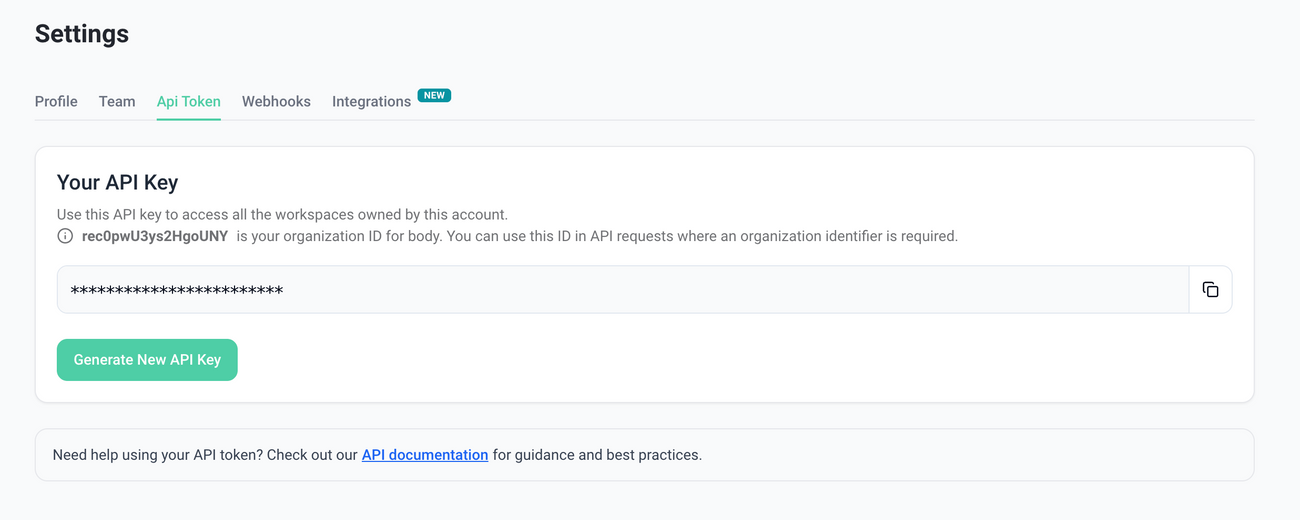
1. Go to Settings → API Token in your ScaledMail dashboard 2. Click Generate Token 3. Copy the token — you'll need it in Step 3
> Keep your token private. Treat it like a password. Anyone with this token can access your ScaledMail account.
Step 2. Install Claude Desktop & Node.js
If you haven't already:
1. Download and install Claude Desktop: claude.ai/download 2. Download and install Node.js: nodejs.org — choose the LTS version
To verify Node.js is installed, open a terminal and run:
node -vYou should see a version number like v20.x.x.
Step 3. Edit the Claude Desktop Config
1. Open Claude Desktop 2. Go to Settings → Developer → Edit Config
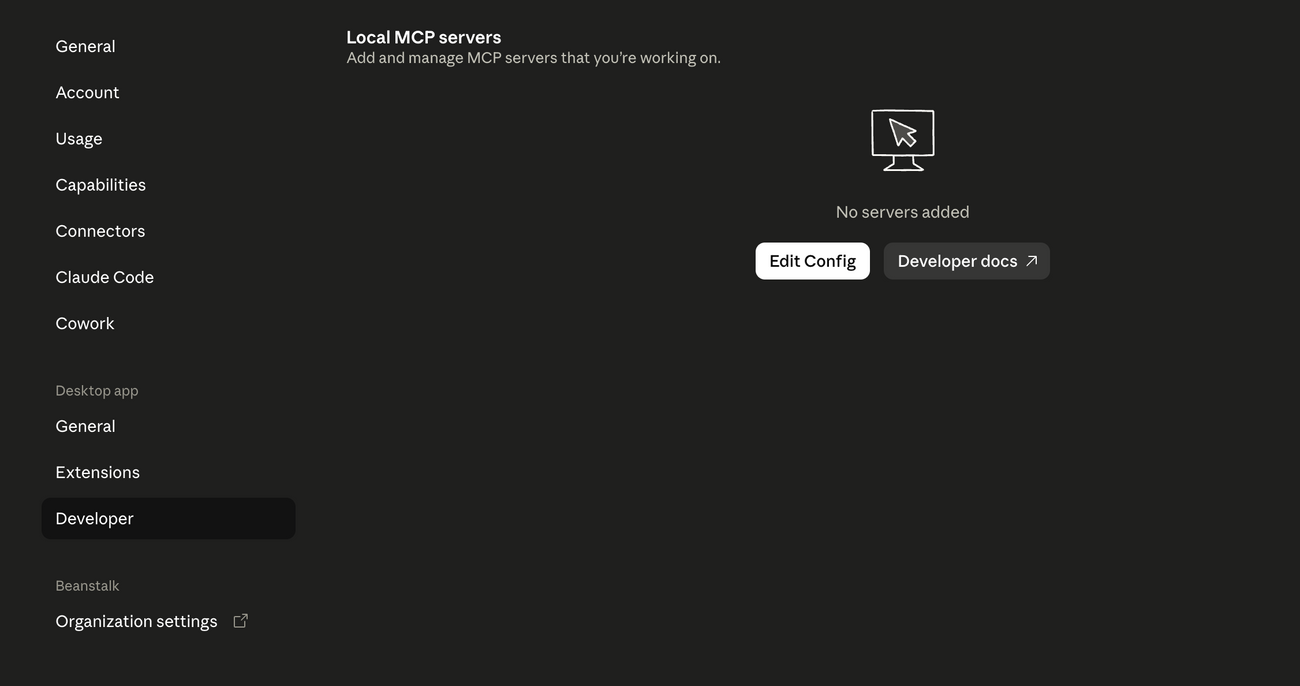
3. This opens claude_desktop_config.json in your file system
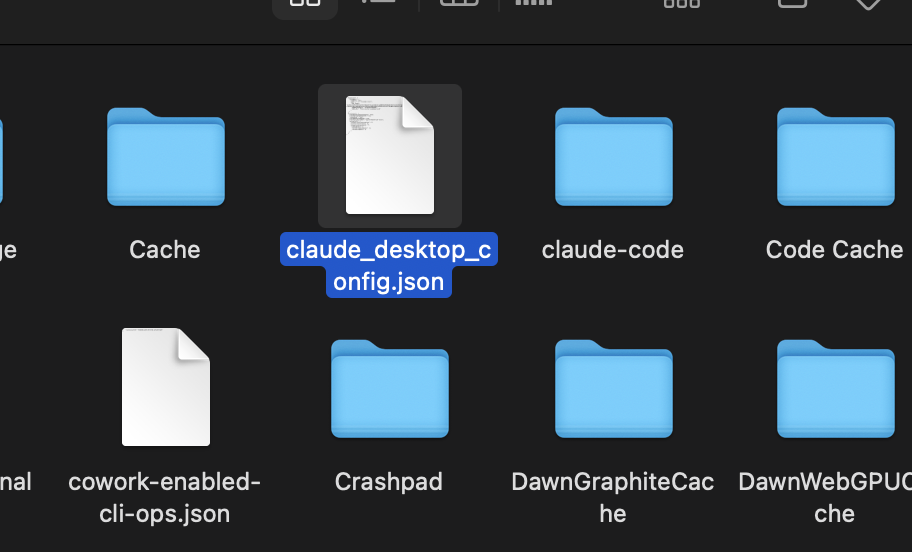
4. Open the file and paste the following config. Replace YOUR_API_TOKEN with the token from Step 1 and YOUR_ORG_ID with your Organization ID (found in your ScaledMail Settings URL or profile).
json{
  "mcpServers": {
    "scaledmail": {
      "command": "npx",
      "args": ["-y", "scaledmail-mcp"],
      "env": {
        "API_TOKEN": "YOUR_API_TOKEN",
        "ORGANIZATION_ID": "YOUR_ORG_ID",
        "BASE_URL": "https://server.scaledmail.com"
      }
    }
  }
}
> The scaledmail-mcp package is installed automatically by npx — no separate install needed. View on npm →
> Already have other MCP servers configured? Don't replace the whole file. Just add the scaledmail block inside your existing mcpServers object.
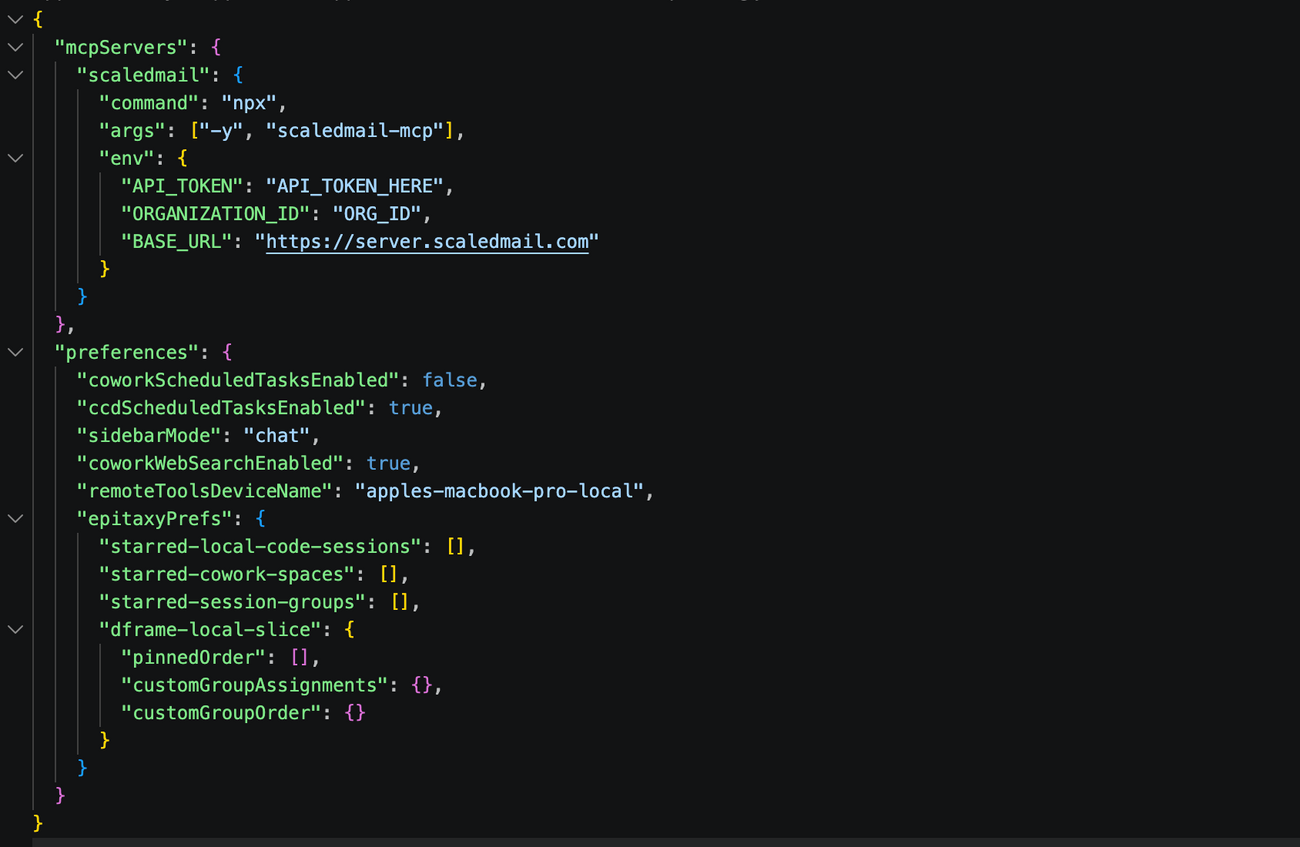
5. Save the file
Step 4. Restart Claude Desktop
You must fully quit Claude Desktop — closing the window is not enough.
- Mac: Press
Cmd + Q - Windows: Right-click the Claude icon in the taskbar → Quit
Then relaunch Claude Desktop.
Step 5. Enable ScaledMail in Claude
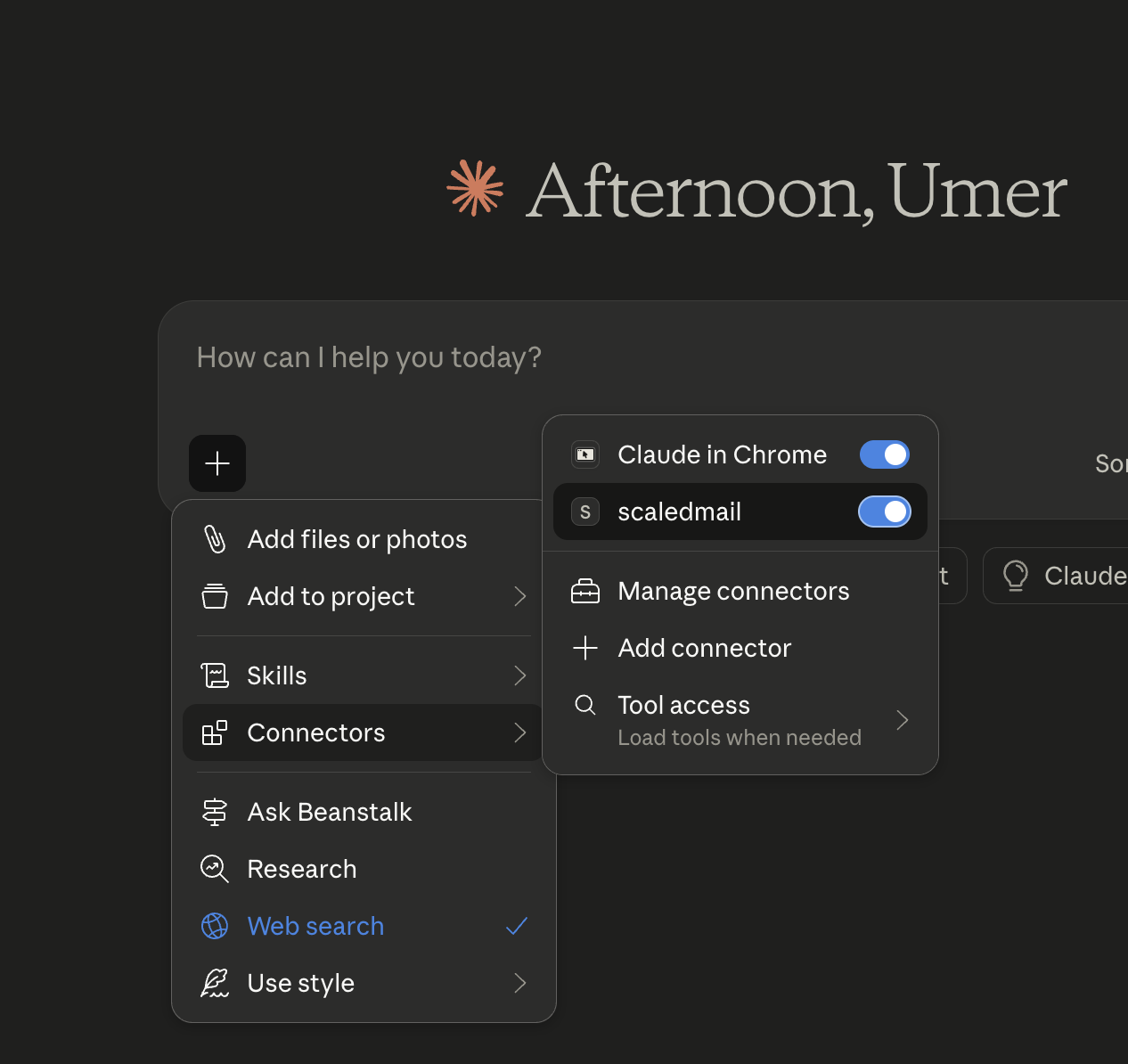
1. Open a new chat in Claude Desktop 2. Click the tools icon (hammer icon) in the bottom of the chat input bar 3. Find ScaledMail in the list and toggle it on
Step 6. Test the Connection
Type /mcp in the chat to confirm ScaledMail is connected. You should see it listed as an active server.
You can also just ask Claude:
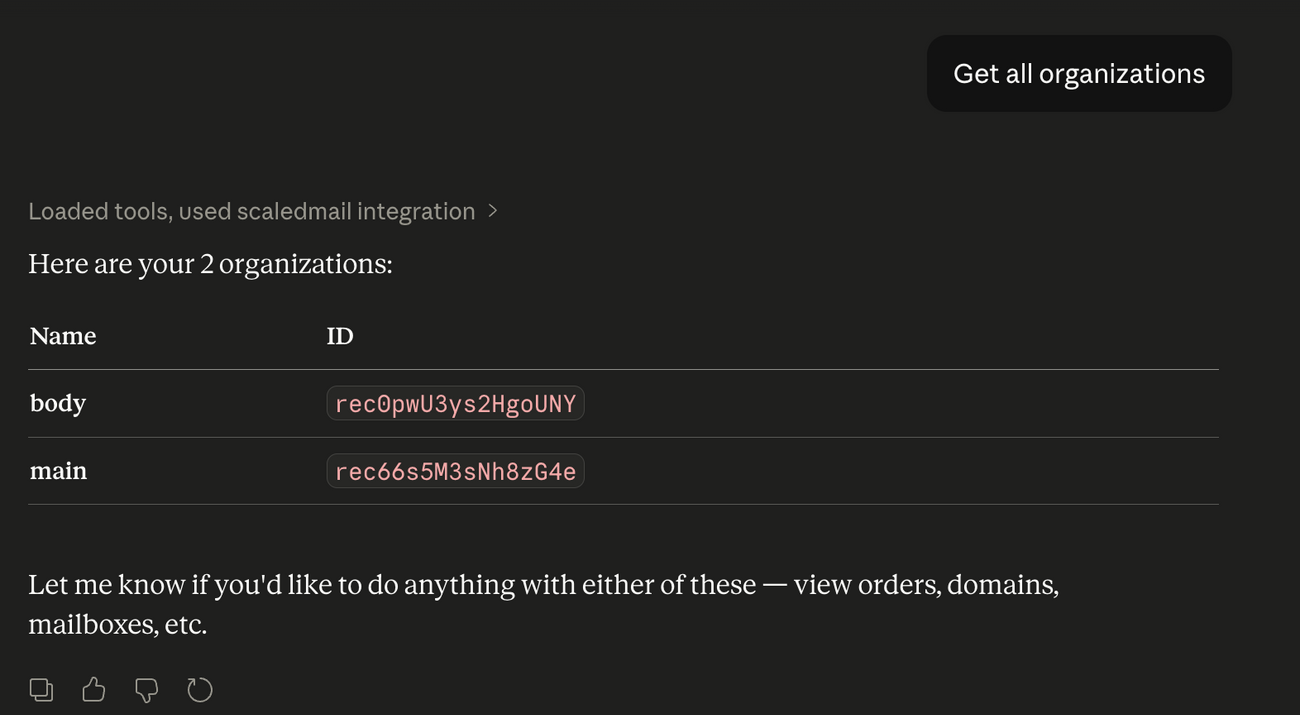
> *"Show me my available domains in ScaledMail"*
Claude will call the ScaledMail MCP server and return your data directly in the chat.
What can you do with ScaledMail in Claude?
- Search and buy new domains
- View and manage your mailboxes
- Swap domains
- Check domain status
- And more as we expand the integration
Troubleshooting
| Problem | Fix |
|---|---|
| ScaledMail not showing in tools list | Make sure you fully quit and relaunched Claude Desktop. Check the config file for typos. |
| npx not found error | Install Node.js from nodejs.org and restart your terminal |
| Authentication error | Double-check your API_TOKEN and ORGANIZATION_ID values in the config |
| Config file not found | Open Claude Desktop → Settings → Developer → Edit Config to create it automatically |
FAQ
Does this work on Claude.ai (web)? No. MCP is only supported in Claude Desktop (Mac and Windows).
Where do I find my Organization ID? Go to ScaledMail Settings. Your Organization ID is visible in the URL or in your profile/workspace details.
Can I use this if I'm not an admin? You need admin access to generate an API token. Once a token is generated, any team member with that token can use the integration.
Is my data secure? Yes. The MCP server communicates directly with the ScaledMail API using your token over HTTPS. Claude only accesses data when you explicitly ask it to.
Still having trouble? Reach out to Dean at [dean@beanstalkconsulting.co](mailto:dean@beanstalkconsulting.co)